
📘 User Guide
Everything you need to use the Nguyen MEP On-Site Tech app and the Tech Portal.
👷 For Field Crews — On-Site Tech App
📲 1. Get the app & sign in
1
Install
Open nguyenmep.com/onsite-tech on your phone and follow the steps for iPhone/iPad (TestFlight) or Android (download).
2
Log in
Enter the email and password your manager set up. Tip: type the password by hand the first time — don’t rely on autofill.
3
Forgot your password?
Tap Forgot password? on the login screen, or ask your manager to set a temporary one for you.
4
Change your password
Tap Profile (top of the home screen) → Change Password.
🦺 2. Weekly safety sign-in (before you can clock in)
1
Once a week
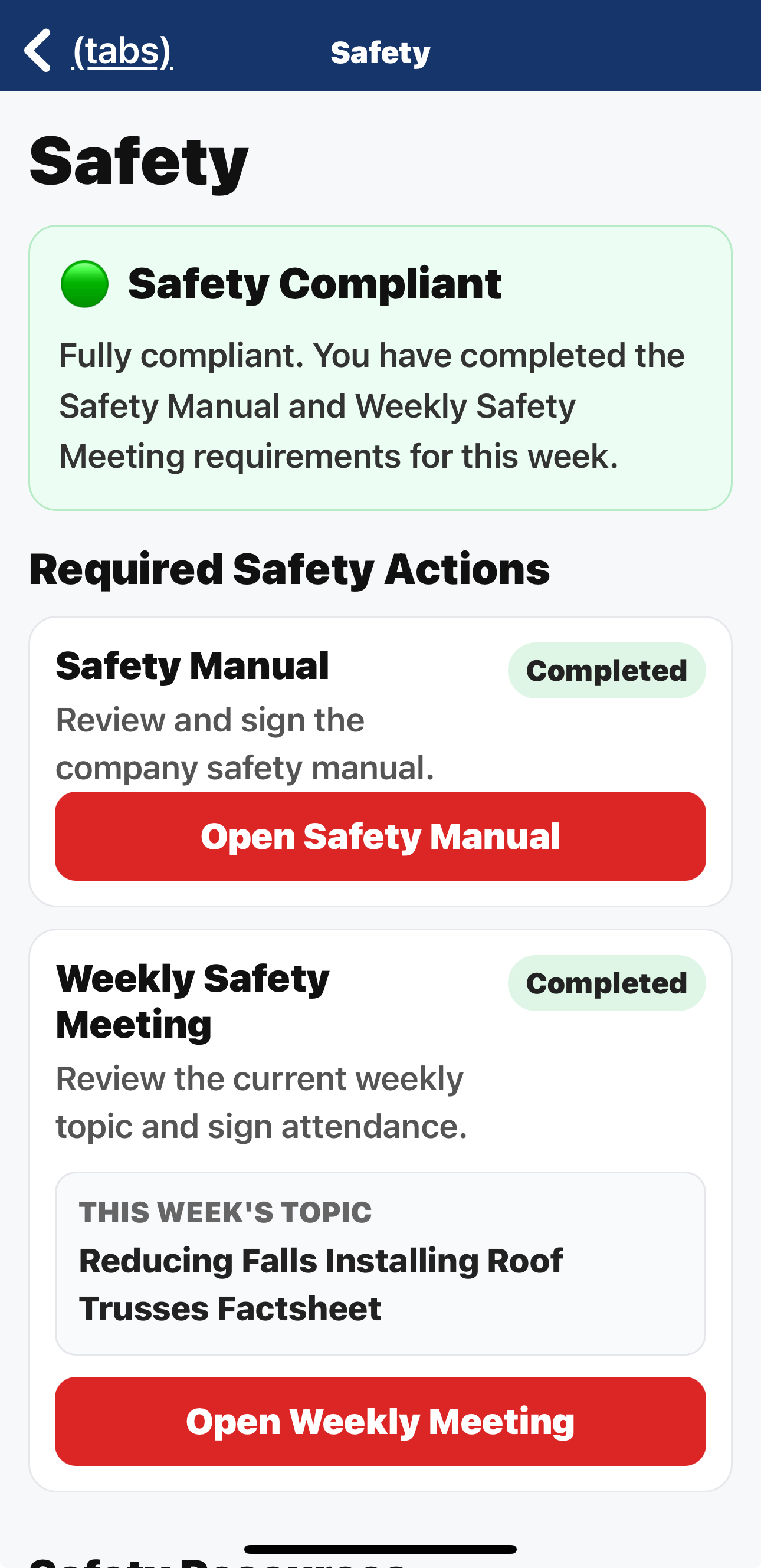
At the start of the week the app asks you to complete safety before clocking in.
2
Read & sign
Read the Company Safety Manual and this week’s meeting topic, then sign once — that covers both. A signed copy is sent to your manager automatically.
⏱️ 3. Clock in and out
1
Clock in
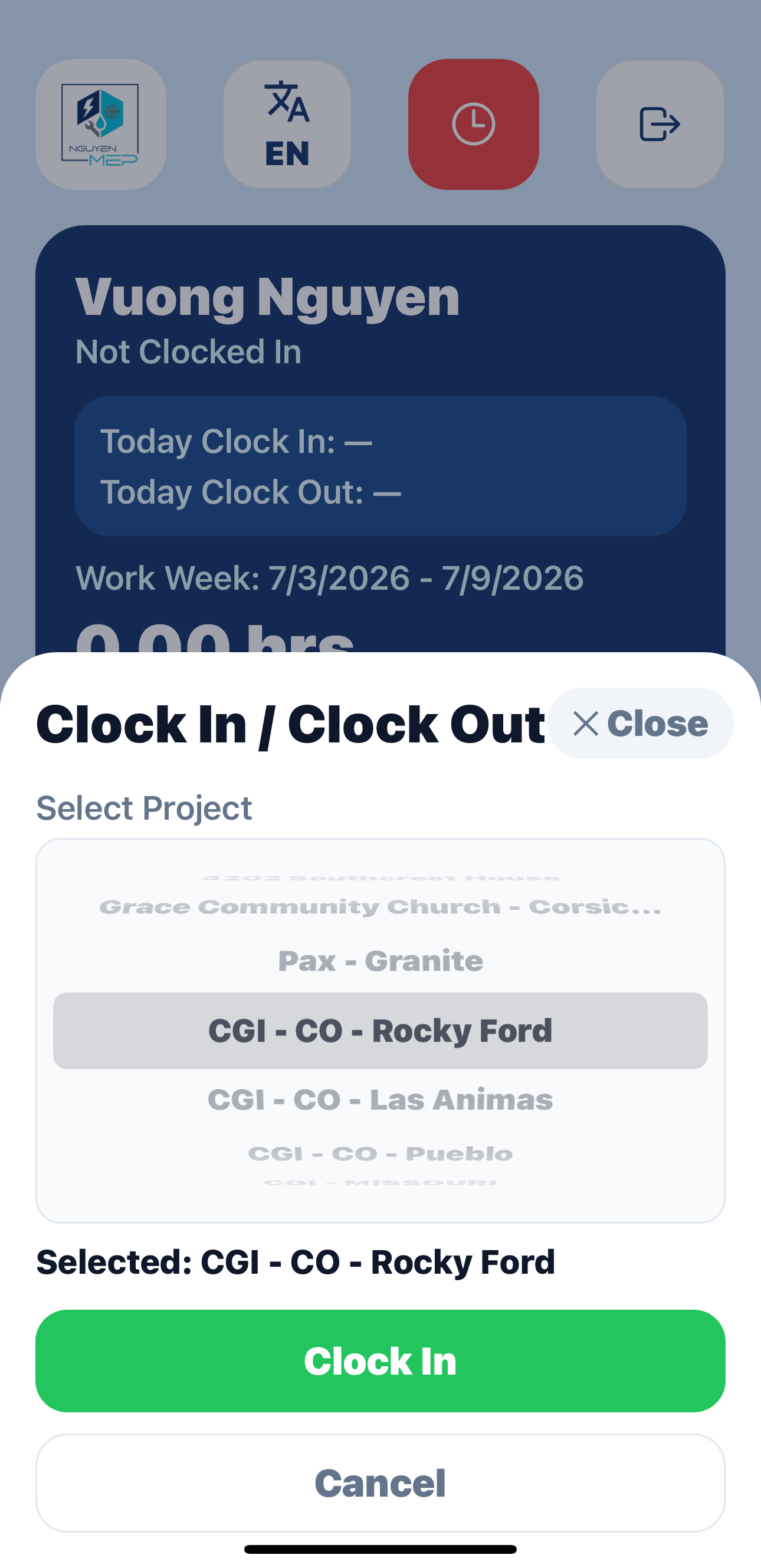
Tap the red clock button → pick your project from the list → Clock In. Your jobsite location is recorded.
2
Off-site or out of state
If you’re not at the jobsite (or in another state), the app asks for a quick reason — just explain where you are.
3
Clock out
Tap the clock again at the end of the day and Clock Out.
🚗 4. Travel & mileage (for gas reimbursement)
1
Only while clocked in
The Travel card is on your home screen. It works while you’re on the clock.
2
Start → Arrived
Tap Start Travel when you leave, and Arrived when you reach the next site. Repeat for each trip. Your miles are added to your gas reimbursement.
🧾 5. Expenses, photos & tools
1
Gas & receipts
Log gas and receipt reimbursements from the app so they show up on your pay.
2
Jobsite photos
Snap progress and safety photos right from the app.
3
Project playbooks
Open your project to see the tools, materials, and steps by phase — check items off as you finish them.
4
Electrical tools
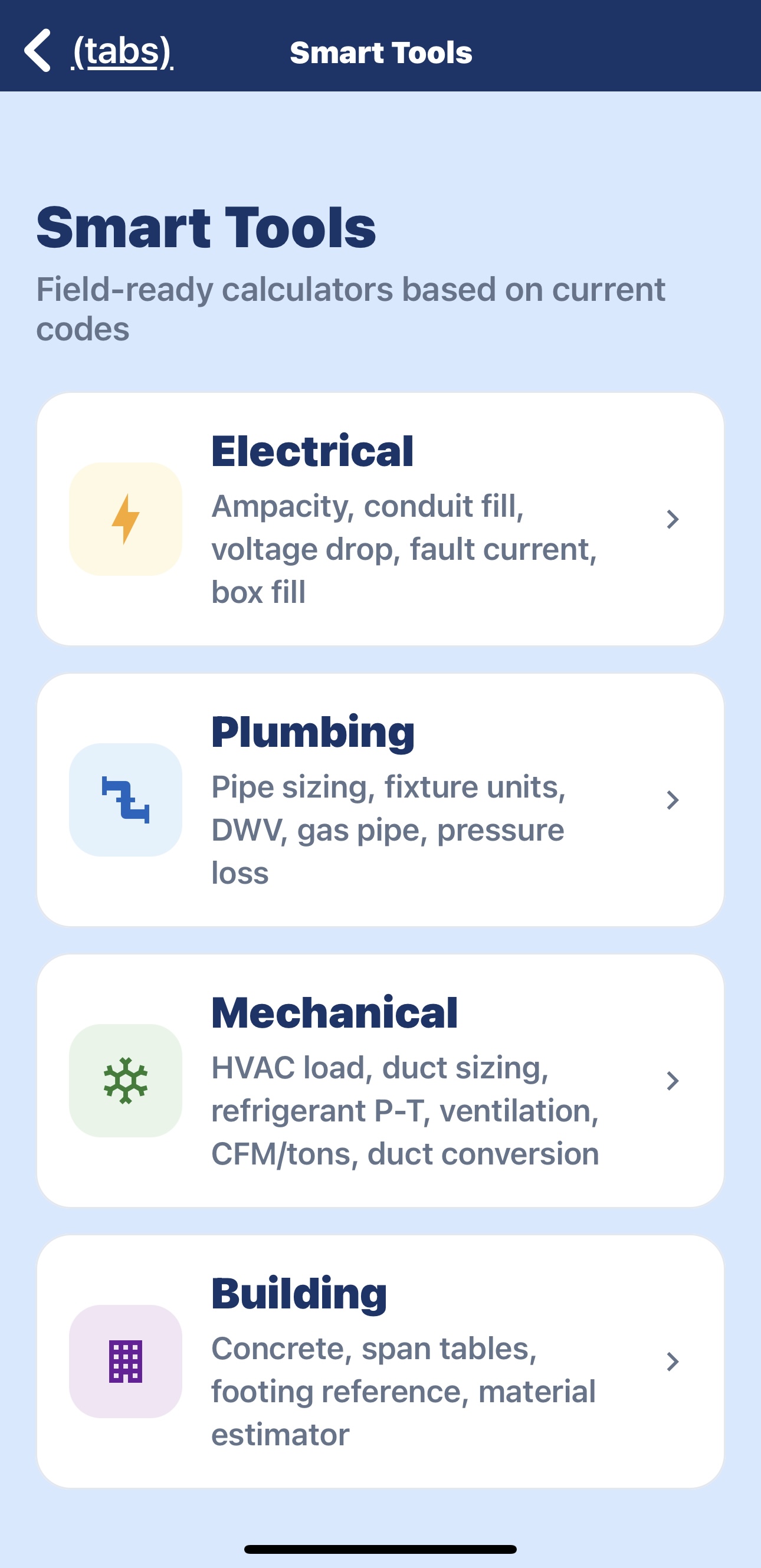
Use the built-in calculators (conduit fill, box fill, voltage drop, ampacity, and more).
👤 6. Your profile & time off
1
Edit your info
Tap Profile → update your name, phone, and home address. Email, role, and pay are set by your manager.
2
Request days off
On the Profile screen, pick your first/last day off and a reason, then Request Day(s) Off. Your manager is notified and can approve it.
🧑💼 For Managers — Tech Portal (web)
🖥️ 1. Sign in & dashboard
Open the Tech Portal in your web browser and sign in with your manager account.
1
Dashboard
See active projects, this week’s hours, open tasks, and the 🌴 Upcoming Time Off list at a glance.
2
Quick Actions
Jump to Workers, Time & Payroll, Projects, Tasks, Finance, Safety, and Smart Tools.
👥 2. Workers (Settings → Workers)
1
Invite a worker
Add a worker by email — or they can create their own account in the app.
2
Edit & pay
Click Edit to set name, phone, wage, role, and hire date.
3
Temporary password
In Edit, use Set a temporary password (Generate → Set) and give it to the worker to log in.
4
Terminate vs Delete
Use Terminate to keep their history but block sign-in; use Delete (in Edit) only for duplicate/mistaken accounts — it removes the login permanently.
⏱️ 3. Time & Payroll
1
Review by pay period
See each worker’s hours, labor, gas, receipts, miles, and total. Expand a worker for the day-by-day breakdown.
2
Add a manual entry
Forgot to clock in? Click + Add Entry — pick worker, day, and times.
3
Mileage rate
Set the $/mile rate at the top of the page; it’s applied to everyone’s miles for gas reimbursement.
4
Print
Print the payroll summary, pay stubs, or worker checks.
📖 4. Projects & playbooks
1
Projects
Create projects, set status (including “Not Awarded”), and track finance/bookkeeping and payroll per project.
2
Playbook templates
Build reusable templates with tools, materials, and steps organized by phase (Underground → Final).
3
Add to a project
On a project, add a playbook so the crew can check items off. Print PDF or Export to CSV anytime.
🦺 5. Safety & time off
1
Weekly topic
A weekly safety topic is generated automatically; workers sign the manual + meeting in one step.
2
Records
Signed acknowledgement PDFs are emailed to you and kept for records.
3
Approve time off
When a worker requests days off you get an email; approve or deny it from the dashboard’s Upcoming Time Off widget.
👤 6. Your profile
1
Profile link
Click 👤 Profile in the top nav (any page) to edit your name, phone, and address, or change your password.
Questions? Contact us · Download the app